Why previewing a restaurant menu in 3D beats a flat PDF
A flat PDF hides fold, thickness and how a menu sits on the table. Why a 3D preview catches errors before you print, and what to look for when you turn the model.
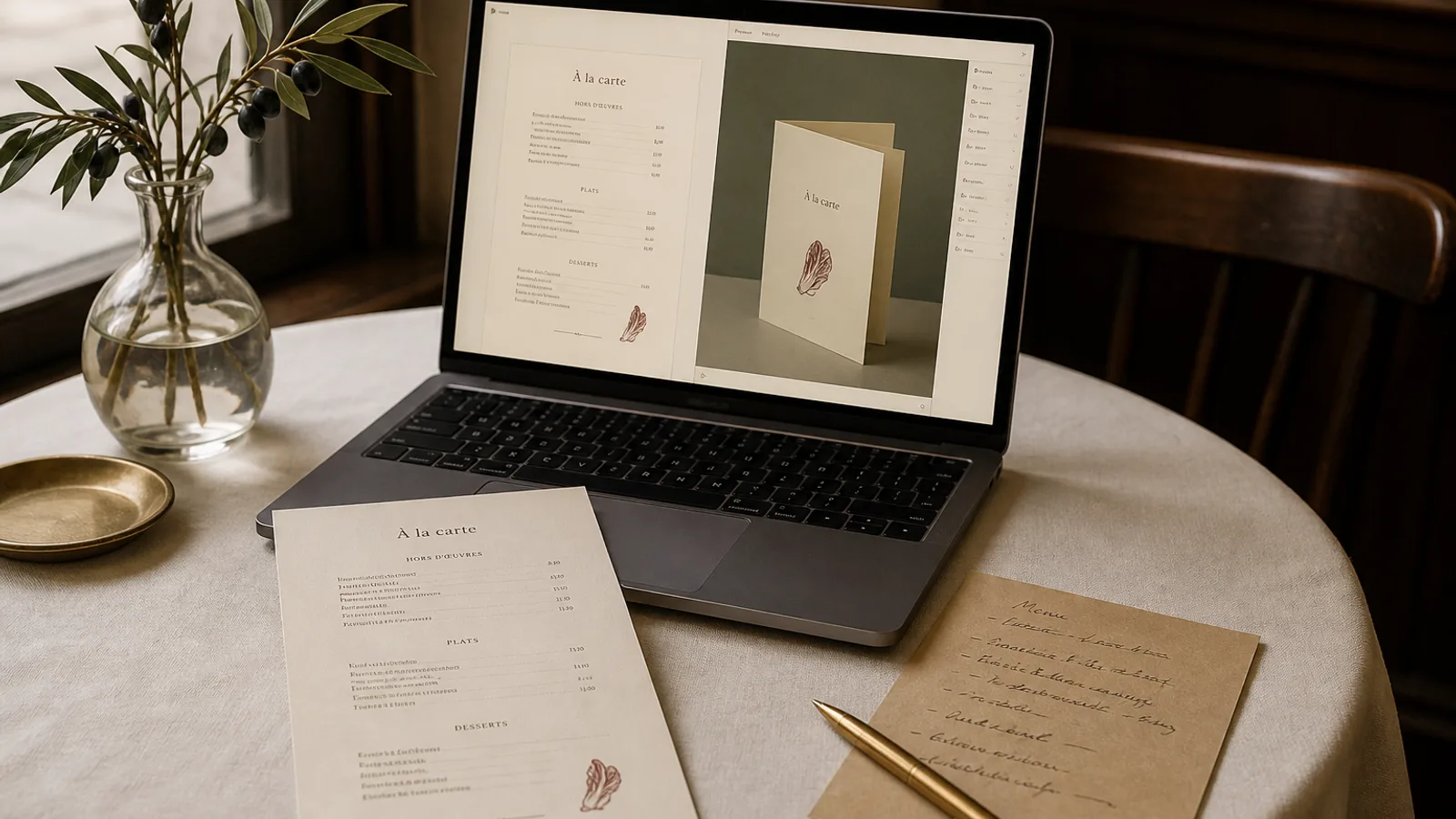
A PDF of an A5 bifold is four rectangles on a screen. It does not tell you that the fold will cut a heading in half, that the back cover is upside down when the card sits on the table, or that 11 pt type which looked generous on a 27-inch monitor reads as 8 pt once the sheet is 148 mm wide in the hand. Those are physical facts. A 3D preview is the cheapest way to meet them before you spend 99 € plus 10 € a copy on a run. This article explains what a flat proof cannot show, how to read a model, and which mistakes disappear the first time you turn the card.
What a flat PDF quietly lies about
Imposition is the first lie. A designer, or a system, exports pages 1-2-3-4. On a bifold those faces are not read in that order. The guest sees the front cover, opens to a spread, and may never look at the back until the card is put down. A PDF spread view helps, but it still shows two pages side by side on a glowing rectangle. It does not show the hinge, the 2 to 3 mm of visual loss in the gutter, or the way a scored fold on 350 g board sits slightly proud and throws a shadow across the inner margin.
Scale is the second lie. Zoomed to fit, an A5 looks like an A3. You approve 9 pt descriptions because they look fine at 180 percent. In the room, under 2700 K tungsten, those descriptions vanish. A 3D model that is roughly life-size on the screen, or that you can compare to a credit card in the same view, restores the real measure.
The third lie is thickness. A single sheet of 350 g matte board with a soft-touch finish has a different hand from a 170 g flyer. The PDF is the same file. The model at least shows a card, not a poster, and reminds you that a bifold has a spine and a direction of opening.
What you actually look for when you turn the model
Open and close the bifold. Watch the gutter. A heading that starts 4 mm from the fold will be swallowed by the score. Pull every heading and every price column at least 8 mm from the hinge on 350 g stock; 10 mm is more comfortable. If a dish name wraps and the second line sits in the gutter, shorten the name or move the section.
Flip the card and look at the back cover as it will sit on the table: logo down, or logo up? Many exports put the back upside down relative to the front, so a stacked pile on the pass shows the wine list inverted. The model makes that obvious in two seconds. Check that the cover and the first inner face share a tone: a cream front and a cold white inside is a file that was built as four separate pages, not as one object.
- Gutter: no type or ornament closer than 8 mm to a scored fold on 350 g board.
- Reading order: cover, then the spread a guest actually opens, then the back as it lies on the cloth.
- Scale: judge type at something close to 1:1, not zoomed to fill the monitor.
- Edges: anything that must survive the trim stays 5 mm inside; anything meant to bleed goes a full 3 mm past.
Single sheet, double-sided, and the table test
A single-sheet A4, printed both sides, has no fold to hide mistakes, but it has a rotation problem. If the back is imposed head-to-head instead of head-to-toe, the guest who turns the card over like a page will find the wine list upside down. If it is imposed head-to-toe, the guest who flips it like a placemat will have the same problem. There is no universal right answer; there is the way your staff actually hand the card over. Watch that motion in the 3D view and match the imposition to it.
Then put the model on a simulated table. An A4 single sheet on a 70 × 70 cm bistro table leaves little room for a bottle and two glasses. An A5 bifold leaves more. If you are choosing format, the model is faster than printing two dummies. You will see immediately whether the card wants to be held or to lie flat, and whether the logo on the cover is large enough to read from the next table. That last point matters on a terrace.
Lighting the preview like the room
If the tool lets you change the light, set it warm and a little dim. Menus are read at 50 to 150 lux in many dining rooms, not at office brightness. Pale grey type that passed on a PDF will fail in the model under a warmer key. Soft-touch 350 g board also kills specular highlight; a gloss you approved on screen will not be there in the hand. Design for the duller, warmer version.
Catching prepress errors before they cost a reprint
A 3D preview will not replace a printed proof, but it catches the errors that waste a first copy. Type in the bleed. A background that stops 0.5 mm short of the trim and will flash white. A logo that sits 2 mm from the corner and will be rounded off if the cutter is 0.5 mm off. A QR code that looks sharp on the PDF and, at real size, is 12 mm across and will not scan. Fix those on screen.
Colour is the limit of the model. Screens are RGB and bright. Your print file is CMYK, Fogra39 or the profile you actually use, on a specific board. The model can warn you that a pale gold will vanish; it cannot promise the printed cream. Order one copy, hold it in the room, then order the run. The preview saves you from reprinting because the fold was wrong; it does not save you from reprinting because the paper was the wrong white.
When a PDF is still the right proof
Copy. Prices. Allergen numbers under Regulation 1169/2011. The service line. Those you proof on a flat file, zoomed in, line by line, with yesterday's menu next to it. The 3D model is a poor place to read 8 pt footnotes. Use each proof for what it is good at: the model for object, fold, scale and edges; the PDF for words and numbers; the first printed copy for colour, board and the room.
A studio that only sends a PDF is asking you to imagine a physical object. Most owners imagine it larger, brighter and flatter than it will be. That is why so many first print runs come back with the comment that the type feels small. It was always small. Nobody had held it.
Turn it before you print it
If you take one habit from this article, make it this: do not approve a bifold until you have opened and closed it on a model, and do not approve a double-sided sheet until you have turned it the way a guest will turn it. Those two gestures catch more expensive mistakes than another hour of kerning.
In Menu Atelier you turn the menu in the browser as a real 3D object, switch A4 to A5 or single sheet to bifold in one click, and only then download the print bundle or order copies printed on 350 g matte board with a scored fold; the model is there so the first physical copy is a confirmation, not a surprise.