Menu PDF for Google Business Profile and delivery apps: the right file
How to prepare a menu PDF that Google Business Profile, Uber Eats and Deliveroo actually display well: file size, page format, text layers, fonts and update routine.
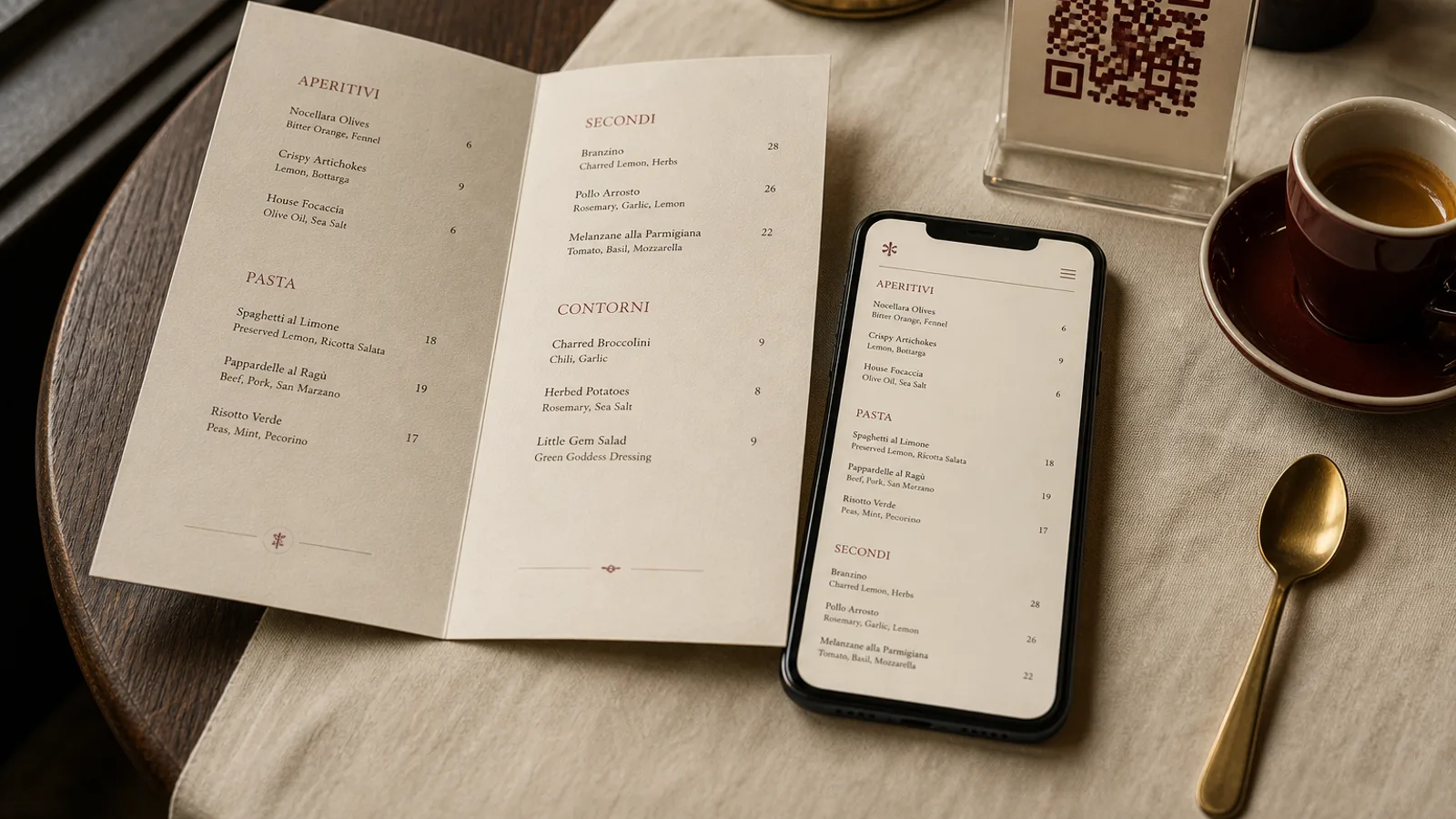
Half of the guests who walk into a restaurant for the first time have already looked at the menu on their phone, usually straight from the Google listing. Yet the file they find there is often a 14 MB print PDF with crop marks, a bleed of 3 mm and white text on a photo that turns to mush at 400 pixels wide. This guide explains what a menu PDF needs to be when it lives on Google Business Profile and on delivery platforms, and how to produce it from the same source as your printed menu without doubling the work.
What Google actually does with your menu file
Google Business Profile accepts a menu in three forms: a link to a menu page, a structured menu typed item by item in the dashboard, and uploaded photos or PDFs in the Menu photo category. The PDF route is the one most owners choose because it takes two minutes, but it is rendered as an image preview, not as a document. Guests see the first page as a thumbnail; tapping opens a viewer that pinches and zooms.
Two consequences follow. The first page must carry the most important information because many guests never swipe further. And the type needs to survive a downscale to roughly 1080 pixels on the long side, which means anything under 9 pt on an A4 layout becomes unreadable without zooming.
The structured menu, typed into the dashboard with dish names, descriptions and prices, is what Google uses in search results and in the dish carousel. It is dull work, but it is the only version that is searchable. Do both: the PDF for the look, the structured entries for the search engine.
Export settings for a screen PDF
A print PDF and a screen PDF are two different exports of the same layout. The print file carries CMYK colour, 300 dpi images, 3 mm bleed and crop marks. The screen file should have none of that. Trim it to the final page size, convert to sRGB and downsample images to 150 dpi, which is plenty for a phone screen and cuts the weight by a factor of five to ten.
- Page size: final trim, no bleed, no marks. An A4 menu exports at 210 × 297 mm; an A5 bifold exports as four A5 pages, not as one A4 spread.
- Colour: sRGB, no output intent. Fogra39 profiles embedded in a screen file only add weight and shift colours in some viewers.
- Images: JPEG at 150 dpi, quality around 80 percent. A two-page menu should land between 300 KB and 2 MB.
- Fonts: embed everything and keep text as live text. Outlining text kills copy-paste and makes the file heavier.
- Password and printing restrictions: none. Some viewers refuse to render protected PDFs at all.
Keep the file name descriptive and stable, something like maison-dupont-menu.pdf. If you link to it from your own site rather than uploading it, the URL should not change each time you update the menu, otherwise every Google listing, QR code and Instagram bio pointing to it breaks.
One layout, two reading distances
A printed A4 menu is read at 40 cm; a phone screen at 30 cm but with the whole page shrunk to a width of 7 cm. This is why an unchanged print PDF fails on screen: the 11 pt body text becomes the equivalent of 3.5 pt. You have three options, in increasing order of effort.
- Accept zooming. Fine for a single-page menu with generous type, 12 pt minimum, and strong contrast. Guests pinch once and read a column.
- Export a single-column version. Reflow the same content into a narrow A5 or even 105 × 297 mm strip so each column fills the phone width. This is the best compromise for most restaurants.
- Build a separate web menu. Right for large or fast-changing menus, unnecessary for a bistro with 25 dishes.
Whatever you choose, the reading order must be obvious without the physical cues of paper. A bifold works because the guest opens it and sees two panels at once; on a phone, page two arrives after a swipe. Put starters and mains on page one, drinks and desserts on page two, and never split a section across a page break.
Delivery platforms want data, not design
Uber Eats, Deliveroo, Just Eat and Glovo do not display your PDF. They ingest a structured menu: categories, item names, descriptions of 100 to 200 characters, prices, modifiers and one photo per dish, usually square or 4:3 at a minimum of 1200 pixels. The PDF is only useful to the onboarding team who types it in, and to your own staff as a reference.
That means the useful artefact for delivery is not a file but a clean spreadsheet: one row per dish, one column per language if you serve tourists, allergens as codes, prices with and without the platform commission. Most platforms add 25 to 35 percent in fees; many restaurants list delivery prices 10 to 15 percent above the dine-in card, and this is the moment to decide that policy rather than discovering it in the dashboard.
Descriptions written for print rarely fit. A menu line that reads beautifully as “Roast free-range chicken, tarragon jus, new potatoes” needs a delivery version that answers the questions a guest at home asks: portion size, whether it comes with a side, how spicy it is, what is vegetarian. Write both at the same time, from the same list of dishes, so they never drift apart.
Allergens and prices that stay in sync
Under Regulation 1169/2011 the fourteen allergens must be available to the guest before they order, and that applies to online ordering as much as to the table. On a PDF the simplest approach is the footnote code system, letters or numbers after each dish with a legend on the last page. On delivery platforms, use their dedicated allergen fields; a free-text mention in the description is not enough and is often truncated.
Prices drift more often than allergens. A typical failure: the printed card is updated in March, the PDF on Google still shows February prices in June, the delivery app shows a third set. Guests notice, and they talk about it in reviews. Put a small “prices valid from” line in the footer of every export and make the update of the three channels a single task on the same afternoon.
A monthly routine that takes twenty minutes
Treat the PDF like the printed card: it has a version, a date and an owner. Once a month, or whenever a price changes, export the screen PDF, replace it in Google Business Profile, update the structured items, then run through the delivery dashboards with the same spreadsheet. Check the Google listing on a phone, not on your laptop; the preview on a 6-inch screen is what your guests see.
In Menu Atelier the same design produces both files: the print bundle with 3 mm bleed and crop marks for the press, and a lighter trimmed PDF and PNG per face that you can drop straight into Google or send to a delivery onboarding team. Switching the layout from A4 single sheet to a narrower A5 format for phone reading is one click, and you can check the result in 3D before exporting.